Wednesday, July 1, 2015
I am back!
Thursday, May 31, 2012
Thursday, May 24, 2012
Transfer Contacts from Blackberry Torch to iPhone
I hate to say this, but nowadays more people are ditching their blackberries for the iPhone or Android devices.
I recently had a request from a user who had been happily using a Blackberry Torch. He had just bought an iPhone 4S and wanted to know how he could move all his contacts to his new phone. I took this to be an easy task to do, but as I found a few minutes later, this was going to be quite a challenge. I found that I could not bulk copy the contacts onto the sim and move the sim across to the iPhone. The Blackberry Torch did not have any option to bulk copy contacts!! With at least 200 contacts, I did not want to waste a few days just moving contacts around, so I decided to find a better solution.
And here it is.
1. Create a gmail account (unless you already have one)
2. Download Google Sync onto your Blackberry Torch.
3. Sign in to your Google Sync using your Gmail Credentials from step 1. above
4. You will then be asked to sync your contacts to Gmail. Change the frequency to Manual.
5. Do a sync of the contacts so that all contacts are uploaded to Gmail.
6. Once this is complete, login to your Gmail account
7. Go into Contacts. Under More, you will see the Export option. Click this.
8. Choose the following settings for Exporting Contacts
- All Contacts
- vCard format (for importing into Apple Address Book or another application)
9. Once you have done this, you will get a file with all your contacts in it.
Now we will import this into your iPhone. To do this, we will login to your iCloud account.
Please note that to get an iCloud account, you will need to be running at least iOS 5.0 on your iPhone. If you have not already done so, please create an iCloud account.
10. Login to your iCloud account using your browser by going to http://www.icloud.com
11. From the dashboard, click on Contacts (you might be asked to install the iCloud Web App Plugin) Click Install for this.
12. Once you are in your iCloud contacts section, at the bottom you will see a spiked wheel icon. This is your settings icon. Click on it and choose Import vCard
13. You will then get a popup asking you for the location of the vCard file. Point it to the file that you exported from Gmail (Step 9)
14. Once the import is finished, Viola! Your contacts would have been uploaded to iCloud.
15. Ensure your iPhone has been setup to Sync its contacts with iCloud. If it has then all your imported Gmail Contacts will now show on your iPhone.
Yay!! How easy was that?
Friday, May 4, 2012
Samsung unveils Samsung Galaxy S III .. well ahead of the rumored iPhone 5 launch
As most of you might be already aware, when the Samsung Galaxy SII came out, many took it to be the iPhone killer. With such close similarity to iPhone 4, it is no wonder why this phone has been so popular. Even so because it is so easy to use and with the loads of apps and hardware features it contains, it is a must have.
There are rumors that Apple is set to release its next iPhone in the coming months. This will surely be a must see product since it will be the first iPhone that would truely be released under the reins of Tim Cook. Will it have a bigger screen? NFC chip? Faster processor? A newer look?
Well ahead of the iPhone 5 launch, Samsung has unveiled its next installment in the Galaxy S series. The Samsung Galaxy SIII was unveiled in UK not too long ago. From first looks it seems like a marriage between Samsung Galaxy SII and Samsung Nexus. Unlike its predecessor, the new Galaxy SIII has got a more polished edge (like the Nexus). It boasts a quad core processor and has got Android 4.0 installed (Ice Cream Sandwich).
Currently the Samsung Galaxy SIII has only been announced for UK and Europe markets but the company has announced that other countries will soon follow.
Will you be rushing out to buy this new phone? Or will you wait till the next iPhone is released to decide which one to get?
You can read more about Samsung Galaxy SIII at the following websites
Tech Jungle
Sydney Morning Herald
Engadget
Thursday, April 19, 2012
Get-PublicFolderStatistics - Couldn't find public folder on server
Using the Exchange Management Shell in Exchange 2010, if you try to get the statistics of a Public Folder PFolder on server ExchangeServer01 using the cmdlet Get-PublicFolderStatistics, you might get an error like the following
Get-PublicFolderStatistics PFolder -server ExchangeServer01
+ FullyQualifiedErrorId : 785BD1AB,Microsoft.Exchange.Management.MapiTasks.GetPublicFolderStatistics
This seems to be a bug since the PublicFolder "PFolder" does exist!
A workaround for this is to add the parameters -ResultSize unlimited to the cmdlet. So modifying the above example with the new parameters,
Get-PublicFolderStatistics PFolder -server ExchangeServer01 -ResultSize unlimited
gives the correct results.
I hope this helps people since it surely had me baffled for a while.
The above is from http://mykbit.blogspot.com.au/2011/05/couldn-find-public-folderwhen-get.html
Tuesday, March 6, 2012
ec2-107-21-251-69.compute-1.amazonaws.com what is this?
Anyways, I looked through the phone and did not find anything odd on it. I then enabled a ssh server on it and connected. I decided to check if the phone was doing any weird tcp connections.
Doing a netstat revealed all. In between the "normal" traffic was one that I had not seen before. ec2-107-21-251-69.compute-1.amazonaws.com
It seemed that connection to this destination was always kept alive. Since the version of netstat on the iPhone does not have options to reveal the PID of the offending process, I was at a loss.
I googled the above address and managed to find some articles that linked it to Viber (this is like Skype). Since SBSetting was already installed on the iPhone, I looked through the currently running processes and found Viber listed. I killed it, and presto! The connection to ec2-107-21-251-69.compute-1.amazonaws.com was no more!
The iPhone was still slow so in the end, the best solution was to install the legit iOS on it :(
The cluster service has determined that this node does not have the latest copy of cluster configuration data
I RDP'd to the problematic server and checked the eventlogs. To my dismay, I found that the following was being logged in the system logs
Event ID 1564 - File share witness resource 'File Share Witness (\\Server1.domain.com\DAG.domain.com)' failed to arbitrate for the file share '\\Server1.domain.com\DAG.domain.com'. Please ensure that file share '\\Server1.domain.com\DAG.domain.com' exists and is accessible by the cluster.
I opened the Failover Cluster Manager and found that the above server had been marked as down. This explained why the server was being reported with a status of Failed in the Exchange Management Console.
I checked the permissions on the DAG share above. The NTFS permissions looked alright. However, the share permissions had an unresolved SID. I took this to be the culprint and doing a bit of googling I found that the cluster computer account should be listed in the share permissions with Full Control. Since this was not listed, I took the liberty of adding in DAG$ in the share permissions with Full Control (my DAG name is called DAG .. yea yea very original).
After doing the above, I noticed that the above error was no longer being shown, but instead the following error appeared.
"Event ID 1561 The cluster service has determined that this node does not have the latest copy of cluster configuration data."
And to add salt to my injury, the server was still marked as down in Failover Cluster Manager. I googled the error and managed to find some articles on it. One of the support articles from Microsoft said to start all the other nodes and if they started, then the affected node will read the configuration off them and start. However, since I already had a node running (the other DAG server), this didnt quite apply.
I tried restarting the cluster services on the affected server, but even this did not resolve the issue. Restarting the server was no help either.
Finally, with a stroke of genius (and luck), I decided to restart the cluster. So from the Failover Cluster Manager, I right clicked on the cluster name (which quite originally was called dag.domain.com) and then under More Actions I selected Shut down Cluster. A prompt came up asking if I really wanted to shut down the cluster. I chose Yes.
After a few minutes (well actually 2min), with fingers crossed, I started the cluster (from Failover Cluster Manager, right click on the DAG name and from More Actions select Start Cluster). Viola, both the DAG servers came back online!
I quickly checked Exchange Management Console and saw that both the servers were now being reported as online. The problematic server was now being updated from the other server (you might see a huge CPU spike on the problematic server while the updates are copied to it)
Take care and until the next time. And remember, with windows, you restart :)
Saturday, February 11, 2012
Exchange 2010 Service Unavailable during SMTP transactions. Exchange Server is not accepting any incoming emails
Anyway, not to get side tracked. This week, one of my legacy Exchange Servers (Exchange 2003) broke down. Or that was what it seemed superficially. I am still trying to work through the migration of my Exchange 2003 servers to Exchange 2010. I still have a handful of users left on my legacy server and so am trying my best to move them across. As it happened, on this day, users on my Exchange 2010 started receiving Delay notifications when sending emails to users on Exchange 2003. Users on Exchange 2003 were also receiving the same when they tried sending emails to anyone on Exchange 2010 or to those outside the organisation.
I checked the queues and found that the Exchange 2003 queues were increasing with time and Exchange 2010 queues with emails destined to Exchange 2003 were suffering from the same fate.
My first reaction was that network issues might have cropped up, causing havoc between Exchange 2010 and Exchange 2003. Since Exchange 2003 was configured to deliver emails using Exchange 2010 for out-of-organization recipients, this theory made perfect sense. But then when I checked the network connectivity between the two servers, there did not seem to be any problems :(
I then looked at the SMTP logs on Exchange 2003. To my surprise I found that one of the things logged was "Service Unavailable". This meant that the Exchange 2010 CAS server was not receiving emails. I opened up a command line and tried connecting to the Exchange 2010 SMTP service, but after the handshake, I also received "Service Unavailable".
I RDP'd to my Exchange 2010 CAS server and checked the event logs. To my surprise I found that it was throttling the incoming email transactions. This was because the used diskspace on the disk that stores the queues had gone beyond 94%. This is known as BackPressure.
The simple solution was to find and remove all unnecessary files on the Exchange 2010 CAS server to bring the free diskspace up. As I looked through the eventlogs I saw Exchange reporting that the load on the resources had lessened and as such the limitations on the incoming queues was being removed.
Phew!. I forced the messages in the retry queues in both Exchange 2010 and Exchange 2003 and watched as the numbers reduced.
For those of you that would like to read more on Exchange 2010 Back Pressure, you can click through to the following articles
Technet - Understanding Back Pressure
MSExchange.org Back Pressure in Exchange 2010
I would recommend the MSExchange Article ;)
Sunday, February 5, 2012
Icons have disappeared from Desktop in Windows 7
The issue was that a user complained that when he turned on his machine in the morning, all his desktop icons mysteriously disappeared. I was a abit skeptical at first since he assured me that he had not changed anything. So I remotely connected to his computer, and found that he wasnt telling fibs. The icons had literally disappeared and all that was left was the desktop wallpaper.
At first I thought his user profile would be corrupted so thought to give it a simple test. I right clicked on the desktop and created a new text document. The process went through without any errors but the new icon failed to show on the desktop. I checked his user profile folder to see if the icon had been created. This can be found using the environment variable %userprofile%. So I looked at %userprofile%\desktop and found that a new text document had been created although it didnt show on the desktop. Ahem. Time for some head scratching.
Doing a quick search on the internet revealed the answer to me, and when I realised how simple it was, I could have almost kicked myself (but then I thought otherwise :) )
Anyways to get to the point, all I needed to do was the following
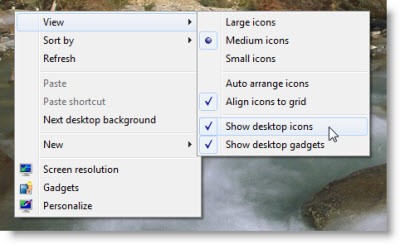
1. Right click on the Desktop and then click on View
2. A sub menu will show and there check to see if Show desktop icons is ticked. In my case it wasnt.
3. Click the Show desktop icons option and then when you return to the desktop, all your icons would have returned
4. You can click the Show desktop icons option again to hide the icons
Viola! Didnt I tell you that it was soo simple ;)
The above solution (and the image above) was copied from http://www.thewindowsclub.com/desktop-icons-not-showing-windows-7
Wednesday, November 30, 2011
Turn OFF the reading pane in Outlook
He told me that when viewing Public Folders, if he turned off the Reading Pane in one folder, when going to the next, it would automatically turned on. This issue was causing him lots of frustration.
I found that the answer to this question is not inside Outlook but in how Outlook is started. In simple terms, outlook needed to be started with the /nopreview flag.
Follow these steps to create a shortcut on your desktop to start Outlook with the Reading Pane turned off.
1. Right Click on your desktop and then select New and then Shortcut
2. In the window that comes up, browse to where Outlook.exe is stored on your computer
(Default location for Outlook 2007 is C:\Program Files\Microsoft Office\Office12\Outlook.exe)
3. Once you have located Outlook.exe, in the path that is displayed, append "/nopreview" (without any quotes) to it.
So taking Outlook 2007 as an example, the location of the item will be
"C:\Program Files\Microsoft Office\Office12\OUTLOOK.EXE" /nopreview
4. Click next and enter a name for this shortcut (Outlook reading pane off)
That is all that is required. Now if you need to start Outlook and not have to keep on turning off the reading pane, just start Outlook using the new shortcut that you have just created on the desktop.
I found the above at http://usfsupport.custhelp.com/app/answers/detail/a_id/3313/~/turn-off-the-reading-pane-for-all-outlook-2007-folders
You can visit http://office.microsoft.com/en-us/outlook-help/command-line-switches-for-microsoft-office-outlook-2007-HP001218589.aspx for a complete list of command line switches for Outlook 2007
Thursday, November 3, 2011
Upgrade to iOS 5 is causing a faster drain of the battery
Another thing I noticed was that my phone's battery kept on draining out faster than before. Where previously I would charge my iPhone once a day, I was now doing it twice a day! The only reason I could put to this behaviour was the recent upgrade to iOS 5. Searching on the internet, I found lots of users having similar issues. The difference though, was that they were using the new iPhone 4S while I was using iPhone 3Gs. However, saying that, they both were running iOS 5. Bingo!
Some websites reported that the degraded battery life on iPhone 4S was due to a bug in the way Location Services was checking and setting the Time Zone. The bug resulted in Location Services doing this task abit too often, which resulted in the higher battery drain. Turning off the automatic setting of Time Zone in Location Services was a fix that many recommended.
I decided to give the same fix a go on my iPhone. The steps are listed below.
1. Open up Settings in your iPhone
2. Locate Location Services and then tap it to open it
3. Navigate to the end of the screen till you see System Services. Tap this to open it
4. In the screen that shows now, turn off Setting Time Zone by sliding the button beside it to OFF.
(for good measure, I turned off Location-Based iAds as well)
Doing the above restored my iPhone to the similar (if not same) battery life that I had before the upgrade.
The fix above should work for any iPhone running iOS 5.
Hope this brings relief to others that had batteries running empty sooner than expected.
Wednesday, October 26, 2011
Happy Diwali and a Prosperous New Year

On this auspicious occasion, I would like to wish each and everyone of you a very Happy Diwali and a Prosperous New Year. Enjoy the sweets and savories with loved ones and make merry of this special day, a day that has been held special for generations.
For those that would like to know more about this special occasion, here is a wikipedia article on Diwali
Friday, October 21, 2011
Remote Desktop Client Asks for Login Username and Password - How to Disable this
However, sometimes the new features are not necessarily easily adopted. This can be quite evident when you have to re-learn what you have got into a habit of. Tell me, how many of your users (including you?) cried when trying to find the print button once you moved to Office 2010?
Remote Desktop Client (RDP) is one of the most used tools for any IT Admin. It gives you an easy way to connect to a server/computer without physically having to be there. But as of version 6, whenever you try to login to any server, before the client even initiates the connection, it prompts for the username and password. Now this can be ok, but at times you would rather enter the credentials at the logon prompt that the server shows on its desktop... well at least there are times when I would like that :)
I found how to do this using a tweak done on the default.rdp file. I thought I would share this so that others could benefit from it as well.
1. Locate the Default.rdp (located in your My Documents folder) file and open it in Notepad.
2. Add a line with the following
enablecredsspsupport:i:0
3. Default.rdp should now look something like below
redirectposdevices:i:0
authentication level:i:0
enablecredsspsupport:i:0
prompt for credentials:i:0
negotiate security layer:i:1
3. Save the file and then exit from Notepad
Now when you start RDP, you will not be prompted for your credentials.
Hope this comes in handy for those that have been nagged by this feature.
[the full document describing this tweak can be found here
Thursday, October 20, 2011
Where are attachments opened inside Outlook Stored?
On his return, to his amazement, he could not locate the word document. After about 5 minutes, he realised that instead of saving the document to his computer first, he had started working straight from the email :(
Now how many of you have come across similar situations? Well, the mere fact that you are able to save updates to the document means that they ARE BEING SAVED SOMEWHERE. Just where is the mystery :)
Well the short answer is that they are stored in a secure temporary folder. The location depends on the version of Outlook you are running and can be easily found by looking at some registry values.
For Outlook 2010, look for the value name OutlookSecureTempFolder under
HKEY_CURRENT_USER\Software\Microsoft\Office\14.0\Outlook\Security
or
HKEY_CURRENT_USER\Software\Policies\Microsoft\Office\14.0\Outlook\Security
For Outlook 2007, look for the value name OutlookSecureTempFolder under
HKEY_CURRENT_USER\Software\Microsoft\Office\12.0\Outlook\Security
or
HKEY_CURRENT_USER\Software\Policies\Microsoft\Office\12.0\Outlook\Security
Outlook 2003, look for the value name OutlookSecureTempFolder under
HKEY_CURRENT_USER\Software\Microsoft\Office\11.0\Outlook\Security
or
HKEY_CURRENT_USER\Software\Policies\Microsoft\Office\11.0\Outlook\Security
The actual Microsoft document detailing the above can be found here
Hope this comes in handy
Sunday, October 9, 2011
Cannot sign in to Lync. Lync was unable to sign in. Please verify your logon credentials again

I came across this very weird error when trying to access my Lync Server using our Edge Servers.
To add some background, I was using a non SOE laptop, running Windows 7 64-bit. Below is a description of the problem
1. I started my Microsoft Lync 2010 Client.
2. I entered my sign-in address (my client was set to Automatic Configuration). I clicked on Sign In
3. My client found my server and prompted me for my credentials.
4. I entered my username/password and clicked on Sign In
5. After some time, I got the error shown above.
No matter, how many times I tried entering my password, the same error kept on coming up.
Finally, after some searching I found out that the error was due to a mismatch in NTLM settings between my Lync Server and my client computer. My Lync Server was expecting a 128bit encrypted secure session from the client but my client was not doing this (this is the default setting on a Windows 2008 R2 server). Here is the KB article for it from Microsoft.
I had two options
1. Configure my server so that there was no explicit requirement for the 128bit encryption
2. Change my client computer to have a minimum of at least 128bit encrypted session
I chose to do 2. since I did not want to lower my session encryption.
To do this, on my local computer I did the following.
1. Opened up the Local Group Policy Editor
2. Browsed to
Computer Configuration\Windows Settings\Security Settings\Local Policies\Security Options\Network security: Minimum session security for NTLM SSP based (including secure RPC) clients
Computer Configuration\Windows Settings\Security Settings\Local Policies\Security Options\Network security: Minimum session security for NTLM SSP based (including secure RPC) servers
and changed both above from No minimum to Require 128-bit encryption
If you want to lower the server security settings, on the Lync Server, open up the Local Security Policy Editor (or your GPO Editor and then Default Domain Policy), then go to
Computer Configuration\Windows Settings\Security Settings\Local Policies\Security Options\Network security: Minimum session security for NTLM SSP based (including secure RPC) clients
Computer Configuration\Windows Settings\Security Settings\Local Policies\Security Options\Network security: Minimum session security for NTLM SSP based (including secure RPC) servers
and make sure the above are set to No Minimum (you will have to untick the 128-bit requirement)
This saved me a days anguish and hope others find this helpful.
(Special thanks to Rohit Gulati's Blog )
Thursday, October 6, 2011
Steve Jobs: The Thomas Edison of the 21st Century

You all might have heard by now that Steve Jobs passed away today. It surely is a sad day, the day when the world lost one of its most influential and inventive beings. Steve was a visionary, pioneer and above all, a tremendous leader. His legacy lives on, enriching billions in their daily lives. Hats off to you Steve.
I managed to find a speech that Steve gave to Stanford students. It is really moving and breathtaking. I urge you all to share in the dream that this great man dreamed.
Steve Job's 2005 Stanford Commencement Address
Wednesday, October 5, 2011
The Certificate is Invalid for Exchange Server Usage
I checked the certificate details to ensure everything was correct and superficially, everything looked fine. I checked the thread of trust, and it was correct as well. I then did some searching on the web and found this excellent article on the issue http://exchangeserverpro.com/exchange-server-2010-certificate-invalid-for-exchange-server-usage-error .
Unfortunately, my issue was not as easily solved as listed in the article above. So I decided to tackle the problem from its foundation.
1. I opened up the Certificate mmc.
2. Here I found the issue! For some unknown reason, my certificate's Intermediate CA and Root CA certificate were in the incorrect certificate store (they were in the Personal certificate store!).
3. I exported the Root CA and Intermediate CA certificates and then deleted them from the Personal Certificate Store.
4. I imported the Root CA into the Trusted Root Certificate Authority and the Intermediate CA certificate into the Intermediate Certificate Authorities certificate Store.
I then refreshed the EMC and viola, the message beside the Certificate now read The Certificate is valid for Exchange Server usage :)
Internet Explorer - Disable Addon
Whenever troubleshooting issues with web based clients, once I have re-created the problem, I disable addons and check, to ensure the issue is not caused by them.
A simple way to do this with Internet Explorer is to start it from the run box with a switch that tells it to do exactly that.
Go to the Run box (Start\Run or if in Vista and above, click on the Windows Circle and then type in the search box at the bottom) and then type
iexplore.exe -extoff
This will start Internet Explorer with all addons disabled. If this rectifies the issue, then most likely your problem lies with one of the addons. Try enabling one at a time and see if the problem reappears. If it does, then the last addon that you enabled is the culprit. In which case, disable it and see if the problem gets resolved.
Happy troubleshooting :)
Wednesday, September 21, 2011
iPhone Browser
Now many times you will find that iTunes does not give you the same accessibility as a normal file browser does. For instance, if you have a flash disk, plug it into your computer. You can then use Windows Explorer to see all the files on it. If you want to do the same with your iPhone, you can not see any more than the photos on it.
Hold on. I might just have the app for that :) Well actually it is an application called iPhone Browser . You do have to install iTunes to use it though. Once installed, you can access pretty much all files on it (according to the support documents, some directories can only be browsed on a jailbroken iPhone).
Give this a try if you want to use something other than the clunky iTunes Apple recommends.
Wednesday, September 7, 2011
The System Administrator has set policies to prevent this installation
Finally, following my nose, I started a cmd.exe using the Run as Administrator option. Then I used the command line to navigate to where the file I wanted to run was. I then executed it. Hey presto! It installed properly :)
Moral of the story. Windows 2008 Server is locked down like Fort Knox. Administrator accounts are stripped off their privleges when they log onto it and you have to explicitly run software as an administrator (or try a sneaky way as I did) to do simple tasks.
Oh well. What can we do... we did ask for better security from Microsoft didnt we?