I must say that my dear old friend Murphy paid me a visit this week. For those of you that are unaware of Murphy, you can get more information here . Basically Murphy's Law says that "Anything that can go wrong will go wrong"
Anyway, not to get side tracked. This week, one of my legacy Exchange Servers (Exchange 2003) broke down. Or that was what it seemed superficially. I am still trying to work through the migration of my Exchange 2003 servers to Exchange 2010. I still have a handful of users left on my legacy server and so am trying my best to move them across. As it happened, on this day, users on my Exchange 2010 started receiving Delay notifications when sending emails to users on Exchange 2003. Users on Exchange 2003 were also receiving the same when they tried sending emails to anyone on Exchange 2010 or to those outside the organisation.
I checked the queues and found that the Exchange 2003 queues were increasing with time and Exchange 2010 queues with emails destined to Exchange 2003 were suffering from the same fate.
My first reaction was that network issues might have cropped up, causing havoc between Exchange 2010 and Exchange 2003. Since Exchange 2003 was configured to deliver emails using Exchange 2010 for out-of-organization recipients, this theory made perfect sense. But then when I checked the network connectivity between the two servers, there did not seem to be any problems :(
I then looked at the SMTP logs on Exchange 2003. To my surprise I found that one of the things logged was "Service Unavailable". This meant that the Exchange 2010 CAS server was not receiving emails. I opened up a command line and tried connecting to the Exchange 2010 SMTP service, but after the handshake, I also received "Service Unavailable".
I RDP'd to my Exchange 2010 CAS server and checked the event logs. To my surprise I found that it was throttling the incoming email transactions. This was because the used diskspace on the disk that stores the queues had gone beyond 94%. This is known as BackPressure.
The simple solution was to find and remove all unnecessary files on the Exchange 2010 CAS server to bring the free diskspace up. As I looked through the eventlogs I saw Exchange reporting that the load on the resources had lessened and as such the limitations on the incoming queues was being removed.
Phew!. I forced the messages in the retry queues in both Exchange 2010 and Exchange 2003 and watched as the numbers reduced.
For those of you that would like to read more on Exchange 2010 Back Pressure, you can click through to the following articles
Technet - Understanding Back Pressure
MSExchange.org Back Pressure in Exchange 2010
I would recommend the MSExchange Article ;)
Saturday, February 11, 2012


Sunday, February 5, 2012
Icons have disappeared from Desktop in Windows 7
Dont you just love it when simple things take more of your time than you actually anticipate? Well I had one of those moments just days ago.
The issue was that a user complained that when he turned on his machine in the morning, all his desktop icons mysteriously disappeared. I was a abit skeptical at first since he assured me that he had not changed anything. So I remotely connected to his computer, and found that he wasnt telling fibs. The icons had literally disappeared and all that was left was the desktop wallpaper.
At first I thought his user profile would be corrupted so thought to give it a simple test. I right clicked on the desktop and created a new text document. The process went through without any errors but the new icon failed to show on the desktop. I checked his user profile folder to see if the icon had been created. This can be found using the environment variable %userprofile%. So I looked at %userprofile%\desktop and found that a new text document had been created although it didnt show on the desktop. Ahem. Time for some head scratching.
Doing a quick search on the internet revealed the answer to me, and when I realised how simple it was, I could have almost kicked myself (but then I thought otherwise :) )
Anyways to get to the point, all I needed to do was the following
1. Right click on the Desktop and then click on View
2. A sub menu will show and there check to see if Show desktop icons is ticked. In my case it wasnt.
3. Click the Show desktop icons option and then when you return to the desktop, all your icons would have returned
4. You can click the Show desktop icons option again to hide the icons
 Viola! Didnt I tell you that it was soo simple ;)
The above solution (and the image above) was copied from http://www.thewindowsclub.com/desktop-icons-not-showing-windows-7
The issue was that a user complained that when he turned on his machine in the morning, all his desktop icons mysteriously disappeared. I was a abit skeptical at first since he assured me that he had not changed anything. So I remotely connected to his computer, and found that he wasnt telling fibs. The icons had literally disappeared and all that was left was the desktop wallpaper.
At first I thought his user profile would be corrupted so thought to give it a simple test. I right clicked on the desktop and created a new text document. The process went through without any errors but the new icon failed to show on the desktop. I checked his user profile folder to see if the icon had been created. This can be found using the environment variable %userprofile%. So I looked at %userprofile%\desktop and found that a new text document had been created although it didnt show on the desktop. Ahem. Time for some head scratching.
Doing a quick search on the internet revealed the answer to me, and when I realised how simple it was, I could have almost kicked myself (but then I thought otherwise :) )
Anyways to get to the point, all I needed to do was the following
1. Right click on the Desktop and then click on View
2. A sub menu will show and there check to see if Show desktop icons is ticked. In my case it wasnt.
3. Click the Show desktop icons option and then when you return to the desktop, all your icons would have returned
4. You can click the Show desktop icons option again to hide the icons
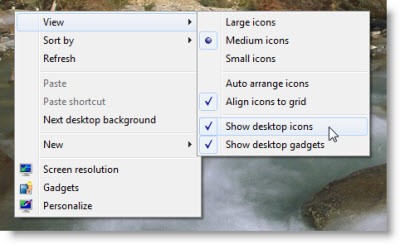
The above solution (and the image above) was copied from http://www.thewindowsclub.com/desktop-icons-not-showing-windows-7
Wednesday, November 30, 2011
Turn OFF the reading pane in Outlook
One of my users recently asked me a very odd question - How to turn off the Reading Pane in Outlook.
He told me that when viewing Public Folders, if he turned off the Reading Pane in one folder, when going to the next, it would automatically turned on. This issue was causing him lots of frustration.
I found that the answer to this question is not inside Outlook but in how Outlook is started. In simple terms, outlook needed to be started with the /nopreview flag.
Follow these steps to create a shortcut on your desktop to start Outlook with the Reading Pane turned off.
1. Right Click on your desktop and then select New and then Shortcut
2. In the window that comes up, browse to where Outlook.exe is stored on your computer
(Default location for Outlook 2007 is C:\Program Files\Microsoft Office\Office12\Outlook.exe)
3. Once you have located Outlook.exe, in the path that is displayed, append "/nopreview" (without any quotes) to it.
So taking Outlook 2007 as an example, the location of the item will be
"C:\Program Files\Microsoft Office\Office12\OUTLOOK.EXE" /nopreview
4. Click next and enter a name for this shortcut (Outlook reading pane off)
That is all that is required. Now if you need to start Outlook and not have to keep on turning off the reading pane, just start Outlook using the new shortcut that you have just created on the desktop.
I found the above at http://usfsupport.custhelp.com/app/answers/detail/a_id/3313/~/turn-off-the-reading-pane-for-all-outlook-2007-folders
You can visit http://office.microsoft.com/en-us/outlook-help/command-line-switches-for-microsoft-office-outlook-2007-HP001218589.aspx for a complete list of command line switches for Outlook 2007
He told me that when viewing Public Folders, if he turned off the Reading Pane in one folder, when going to the next, it would automatically turned on. This issue was causing him lots of frustration.
I found that the answer to this question is not inside Outlook but in how Outlook is started. In simple terms, outlook needed to be started with the /nopreview flag.
Follow these steps to create a shortcut on your desktop to start Outlook with the Reading Pane turned off.
1. Right Click on your desktop and then select New and then Shortcut
2. In the window that comes up, browse to where Outlook.exe is stored on your computer
(Default location for Outlook 2007 is C:\Program Files\Microsoft Office\Office12\Outlook.exe)
3. Once you have located Outlook.exe, in the path that is displayed, append "/nopreview" (without any quotes) to it.
So taking Outlook 2007 as an example, the location of the item will be
"C:\Program Files\Microsoft Office\Office12\OUTLOOK.EXE" /nopreview
4. Click next and enter a name for this shortcut (Outlook reading pane off)
That is all that is required. Now if you need to start Outlook and not have to keep on turning off the reading pane, just start Outlook using the new shortcut that you have just created on the desktop.
I found the above at http://usfsupport.custhelp.com/app/answers/detail/a_id/3313/~/turn-off-the-reading-pane-for-all-outlook-2007-folders
You can visit http://office.microsoft.com/en-us/outlook-help/command-line-switches-for-microsoft-office-outlook-2007-HP001218589.aspx for a complete list of command line switches for Outlook 2007
Thursday, November 3, 2011
Upgrade to iOS 5 is causing a faster drain of the battery
After contemplating for a week, I finally decided to upgrade my iPhone 3Gs from 4.2.3 to iOS 5.0. After a very uneventful 20 minutes(I mean this in a nice way), my iPhone was upgraded to the newer and flashier iOS 5.0. There are alot of features bundled in this upgrade (200+) though I did notice that now my iPhone seems to be a bit sluggish compared to the previous iOS.
Another thing I noticed was that my phone's battery kept on draining out faster than before. Where previously I would charge my iPhone once a day, I was now doing it twice a day! The only reason I could put to this behaviour was the recent upgrade to iOS 5. Searching on the internet, I found lots of users having similar issues. The difference though, was that they were using the new iPhone 4S while I was using iPhone 3Gs. However, saying that, they both were running iOS 5. Bingo!
Some websites reported that the degraded battery life on iPhone 4S was due to a bug in the way Location Services was checking and setting the Time Zone. The bug resulted in Location Services doing this task abit too often, which resulted in the higher battery drain. Turning off the automatic setting of Time Zone in Location Services was a fix that many recommended.
I decided to give the same fix a go on my iPhone. The steps are listed below.
1. Open up Settings in your iPhone
2. Locate Location Services and then tap it to open it
3. Navigate to the end of the screen till you see System Services. Tap this to open it
4. In the screen that shows now, turn off Setting Time Zone by sliding the button beside it to OFF.
(for good measure, I turned off Location-Based iAds as well)
Doing the above restored my iPhone to the similar (if not same) battery life that I had before the upgrade.
The fix above should work for any iPhone running iOS 5.
Hope this brings relief to others that had batteries running empty sooner than expected.
Another thing I noticed was that my phone's battery kept on draining out faster than before. Where previously I would charge my iPhone once a day, I was now doing it twice a day! The only reason I could put to this behaviour was the recent upgrade to iOS 5. Searching on the internet, I found lots of users having similar issues. The difference though, was that they were using the new iPhone 4S while I was using iPhone 3Gs. However, saying that, they both were running iOS 5. Bingo!
Some websites reported that the degraded battery life on iPhone 4S was due to a bug in the way Location Services was checking and setting the Time Zone. The bug resulted in Location Services doing this task abit too often, which resulted in the higher battery drain. Turning off the automatic setting of Time Zone in Location Services was a fix that many recommended.
I decided to give the same fix a go on my iPhone. The steps are listed below.
1. Open up Settings in your iPhone
2. Locate Location Services and then tap it to open it
3. Navigate to the end of the screen till you see System Services. Tap this to open it
4. In the screen that shows now, turn off Setting Time Zone by sliding the button beside it to OFF.
(for good measure, I turned off Location-Based iAds as well)
Doing the above restored my iPhone to the similar (if not same) battery life that I had before the upgrade.
The fix above should work for any iPhone running iOS 5.
Hope this brings relief to others that had batteries running empty sooner than expected.
Subscribe to:
Posts (Atom)


 Posts
Posts


