I had a user come up to me this week with a very weird issue. They had a jailbroken iphone and ever since a few weeks ago, it had been freezing on him. Well my first reply was, thats what you get when you jailbreak an iPhone ;) Actually jailbreaking an iPhone gives you a lot of freedom to do things on it.
Anyways, I looked through the phone and did not find anything odd on it. I then enabled a ssh server on it and connected. I decided to check if the phone was doing any weird tcp connections.
Doing a netstat revealed all. In between the "normal" traffic was one that I had not seen before. ec2-107-21-251-69.compute-1.amazonaws.com
It seemed that connection to this destination was always kept alive. Since the version of netstat on the iPhone does not have options to reveal the PID of the offending process, I was at a loss.
I googled the above address and managed to find some articles that linked it to Viber (this is like Skype). Since SBSetting was already installed on the iPhone, I looked through the currently running processes and found Viber listed. I killed it, and presto! The connection to ec2-107-21-251-69.compute-1.amazonaws.com was no more!
The iPhone was still slow so in the end, the best solution was to install the legit iOS on it :(
Tuesday, March 6, 2012


The cluster service has determined that this node does not have the latest copy of cluster configuration data
A few days ago I got a big surprise on my Exchange 2010 Servers. While doing a routine daily check via Exchange Management Console, I noticed that one of my DAG servers was reporting its status as Failed. This looked really weird since the server itself was online and I could ping it.
I RDP'd to the problematic server and checked the eventlogs. To my dismay, I found that the following was being logged in the system logs
Event ID 1564 - File share witness resource 'File Share Witness (\\Server1.domain.com\DAG.domain.com)' failed to arbitrate for the file share '\\Server1.domain.com\DAG.domain.com'. Please ensure that file share '\\Server1.domain.com\DAG.domain.com' exists and is accessible by the cluster.
I opened the Failover Cluster Manager and found that the above server had been marked as down. This explained why the server was being reported with a status of Failed in the Exchange Management Console.
I checked the permissions on the DAG share above. The NTFS permissions looked alright. However, the share permissions had an unresolved SID. I took this to be the culprint and doing a bit of googling I found that the cluster computer account should be listed in the share permissions with Full Control. Since this was not listed, I took the liberty of adding in DAG$ in the share permissions with Full Control (my DAG name is called DAG .. yea yea very original).
After doing the above, I noticed that the above error was no longer being shown, but instead the following error appeared.
"Event ID 1561 The cluster service has determined that this node does not have the latest copy of cluster configuration data."
And to add salt to my injury, the server was still marked as down in Failover Cluster Manager. I googled the error and managed to find some articles on it. One of the support articles from Microsoft said to start all the other nodes and if they started, then the affected node will read the configuration off them and start. However, since I already had a node running (the other DAG server), this didnt quite apply.
I tried restarting the cluster services on the affected server, but even this did not resolve the issue. Restarting the server was no help either.
Finally, with a stroke of genius (and luck), I decided to restart the cluster. So from the Failover Cluster Manager, I right clicked on the cluster name (which quite originally was called dag.domain.com) and then under More Actions I selected Shut down Cluster. A prompt came up asking if I really wanted to shut down the cluster. I chose Yes.
After a few minutes (well actually 2min), with fingers crossed, I started the cluster (from Failover Cluster Manager, right click on the DAG name and from More Actions select Start Cluster). Viola, both the DAG servers came back online!
I quickly checked Exchange Management Console and saw that both the servers were now being reported as online. The problematic server was now being updated from the other server (you might see a huge CPU spike on the problematic server while the updates are copied to it)
Take care and until the next time. And remember, with windows, you restart :)
I RDP'd to the problematic server and checked the eventlogs. To my dismay, I found that the following was being logged in the system logs
Event ID 1564 - File share witness resource 'File Share Witness (\\Server1.domain.com\DAG.domain.com)' failed to arbitrate for the file share '\\Server1.domain.com\DAG.domain.com'. Please ensure that file share '\\Server1.domain.com\DAG.domain.com' exists and is accessible by the cluster.
I opened the Failover Cluster Manager and found that the above server had been marked as down. This explained why the server was being reported with a status of Failed in the Exchange Management Console.
I checked the permissions on the DAG share above. The NTFS permissions looked alright. However, the share permissions had an unresolved SID. I took this to be the culprint and doing a bit of googling I found that the cluster computer account should be listed in the share permissions with Full Control. Since this was not listed, I took the liberty of adding in DAG$ in the share permissions with Full Control (my DAG name is called DAG .. yea yea very original).
After doing the above, I noticed that the above error was no longer being shown, but instead the following error appeared.
"Event ID 1561 The cluster service has determined that this node does not have the latest copy of cluster configuration data."
And to add salt to my injury, the server was still marked as down in Failover Cluster Manager. I googled the error and managed to find some articles on it. One of the support articles from Microsoft said to start all the other nodes and if they started, then the affected node will read the configuration off them and start. However, since I already had a node running (the other DAG server), this didnt quite apply.
I tried restarting the cluster services on the affected server, but even this did not resolve the issue. Restarting the server was no help either.
Finally, with a stroke of genius (and luck), I decided to restart the cluster. So from the Failover Cluster Manager, I right clicked on the cluster name (which quite originally was called dag.domain.com) and then under More Actions I selected Shut down Cluster. A prompt came up asking if I really wanted to shut down the cluster. I chose Yes.
After a few minutes (well actually 2min), with fingers crossed, I started the cluster (from Failover Cluster Manager, right click on the DAG name and from More Actions select Start Cluster). Viola, both the DAG servers came back online!
I quickly checked Exchange Management Console and saw that both the servers were now being reported as online. The problematic server was now being updated from the other server (you might see a huge CPU spike on the problematic server while the updates are copied to it)
Take care and until the next time. And remember, with windows, you restart :)
Saturday, February 11, 2012
Exchange 2010 Service Unavailable during SMTP transactions. Exchange Server is not accepting any incoming emails
I must say that my dear old friend Murphy paid me a visit this week. For those of you that are unaware of Murphy, you can get more information here . Basically Murphy's Law says that "Anything that can go wrong will go wrong"
Anyway, not to get side tracked. This week, one of my legacy Exchange Servers (Exchange 2003) broke down. Or that was what it seemed superficially. I am still trying to work through the migration of my Exchange 2003 servers to Exchange 2010. I still have a handful of users left on my legacy server and so am trying my best to move them across. As it happened, on this day, users on my Exchange 2010 started receiving Delay notifications when sending emails to users on Exchange 2003. Users on Exchange 2003 were also receiving the same when they tried sending emails to anyone on Exchange 2010 or to those outside the organisation.
I checked the queues and found that the Exchange 2003 queues were increasing with time and Exchange 2010 queues with emails destined to Exchange 2003 were suffering from the same fate.
My first reaction was that network issues might have cropped up, causing havoc between Exchange 2010 and Exchange 2003. Since Exchange 2003 was configured to deliver emails using Exchange 2010 for out-of-organization recipients, this theory made perfect sense. But then when I checked the network connectivity between the two servers, there did not seem to be any problems :(
I then looked at the SMTP logs on Exchange 2003. To my surprise I found that one of the things logged was "Service Unavailable". This meant that the Exchange 2010 CAS server was not receiving emails. I opened up a command line and tried connecting to the Exchange 2010 SMTP service, but after the handshake, I also received "Service Unavailable".
I RDP'd to my Exchange 2010 CAS server and checked the event logs. To my surprise I found that it was throttling the incoming email transactions. This was because the used diskspace on the disk that stores the queues had gone beyond 94%. This is known as BackPressure.
The simple solution was to find and remove all unnecessary files on the Exchange 2010 CAS server to bring the free diskspace up. As I looked through the eventlogs I saw Exchange reporting that the load on the resources had lessened and as such the limitations on the incoming queues was being removed.
Phew!. I forced the messages in the retry queues in both Exchange 2010 and Exchange 2003 and watched as the numbers reduced.
For those of you that would like to read more on Exchange 2010 Back Pressure, you can click through to the following articles
Technet - Understanding Back Pressure
MSExchange.org Back Pressure in Exchange 2010
I would recommend the MSExchange Article ;)
Anyway, not to get side tracked. This week, one of my legacy Exchange Servers (Exchange 2003) broke down. Or that was what it seemed superficially. I am still trying to work through the migration of my Exchange 2003 servers to Exchange 2010. I still have a handful of users left on my legacy server and so am trying my best to move them across. As it happened, on this day, users on my Exchange 2010 started receiving Delay notifications when sending emails to users on Exchange 2003. Users on Exchange 2003 were also receiving the same when they tried sending emails to anyone on Exchange 2010 or to those outside the organisation.
I checked the queues and found that the Exchange 2003 queues were increasing with time and Exchange 2010 queues with emails destined to Exchange 2003 were suffering from the same fate.
My first reaction was that network issues might have cropped up, causing havoc between Exchange 2010 and Exchange 2003. Since Exchange 2003 was configured to deliver emails using Exchange 2010 for out-of-organization recipients, this theory made perfect sense. But then when I checked the network connectivity between the two servers, there did not seem to be any problems :(
I then looked at the SMTP logs on Exchange 2003. To my surprise I found that one of the things logged was "Service Unavailable". This meant that the Exchange 2010 CAS server was not receiving emails. I opened up a command line and tried connecting to the Exchange 2010 SMTP service, but after the handshake, I also received "Service Unavailable".
I RDP'd to my Exchange 2010 CAS server and checked the event logs. To my surprise I found that it was throttling the incoming email transactions. This was because the used diskspace on the disk that stores the queues had gone beyond 94%. This is known as BackPressure.
The simple solution was to find and remove all unnecessary files on the Exchange 2010 CAS server to bring the free diskspace up. As I looked through the eventlogs I saw Exchange reporting that the load on the resources had lessened and as such the limitations on the incoming queues was being removed.
Phew!. I forced the messages in the retry queues in both Exchange 2010 and Exchange 2003 and watched as the numbers reduced.
For those of you that would like to read more on Exchange 2010 Back Pressure, you can click through to the following articles
Technet - Understanding Back Pressure
MSExchange.org Back Pressure in Exchange 2010
I would recommend the MSExchange Article ;)
Sunday, February 5, 2012
Icons have disappeared from Desktop in Windows 7
Dont you just love it when simple things take more of your time than you actually anticipate? Well I had one of those moments just days ago.
The issue was that a user complained that when he turned on his machine in the morning, all his desktop icons mysteriously disappeared. I was a abit skeptical at first since he assured me that he had not changed anything. So I remotely connected to his computer, and found that he wasnt telling fibs. The icons had literally disappeared and all that was left was the desktop wallpaper.
At first I thought his user profile would be corrupted so thought to give it a simple test. I right clicked on the desktop and created a new text document. The process went through without any errors but the new icon failed to show on the desktop. I checked his user profile folder to see if the icon had been created. This can be found using the environment variable %userprofile%. So I looked at %userprofile%\desktop and found that a new text document had been created although it didnt show on the desktop. Ahem. Time for some head scratching.
Doing a quick search on the internet revealed the answer to me, and when I realised how simple it was, I could have almost kicked myself (but then I thought otherwise :) )
Anyways to get to the point, all I needed to do was the following
1. Right click on the Desktop and then click on View
2. A sub menu will show and there check to see if Show desktop icons is ticked. In my case it wasnt.
3. Click the Show desktop icons option and then when you return to the desktop, all your icons would have returned
4. You can click the Show desktop icons option again to hide the icons
 Viola! Didnt I tell you that it was soo simple ;)
The above solution (and the image above) was copied from http://www.thewindowsclub.com/desktop-icons-not-showing-windows-7
The issue was that a user complained that when he turned on his machine in the morning, all his desktop icons mysteriously disappeared. I was a abit skeptical at first since he assured me that he had not changed anything. So I remotely connected to his computer, and found that he wasnt telling fibs. The icons had literally disappeared and all that was left was the desktop wallpaper.
At first I thought his user profile would be corrupted so thought to give it a simple test. I right clicked on the desktop and created a new text document. The process went through without any errors but the new icon failed to show on the desktop. I checked his user profile folder to see if the icon had been created. This can be found using the environment variable %userprofile%. So I looked at %userprofile%\desktop and found that a new text document had been created although it didnt show on the desktop. Ahem. Time for some head scratching.
Doing a quick search on the internet revealed the answer to me, and when I realised how simple it was, I could have almost kicked myself (but then I thought otherwise :) )
Anyways to get to the point, all I needed to do was the following
1. Right click on the Desktop and then click on View
2. A sub menu will show and there check to see if Show desktop icons is ticked. In my case it wasnt.
3. Click the Show desktop icons option and then when you return to the desktop, all your icons would have returned
4. You can click the Show desktop icons option again to hide the icons
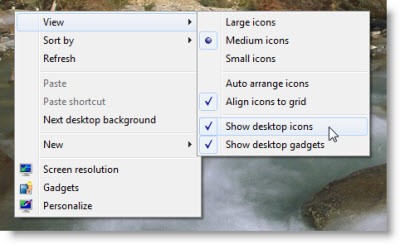
The above solution (and the image above) was copied from http://www.thewindowsclub.com/desktop-icons-not-showing-windows-7
Subscribe to:
Posts (Atom)


 Posts
Posts


